In this article0%
Want to see what Umbrella can do in Dota 2 and Deadlock before buying a subscription? With promo code TESTDOTA, you get 10 days for Dota 2 and another 10 days for Deadlock. Trial access covers both games, so you do not have to choose between them. Register, check your subscription dates, and download the launcher. There is nothing to pay at this stage.
Let's go through the process, from registration to launching a game, so you do not have to piece the instructions together from chat messages.
Who can claim the free 10 days?#
The offer is for new Umbrella users. If you have already used the product, you cannot claim another trial through this process.
There is one code, TESTDOTA, and two trial subscriptions: 10 days for each game. You can explore both the Dota 2 features and the Deadlock version.
Register and enter the promo code#
Open the Umbrella Deadlock page with TESTDOTA and click Sign Up. If the site opens in another language, look for the registration button.
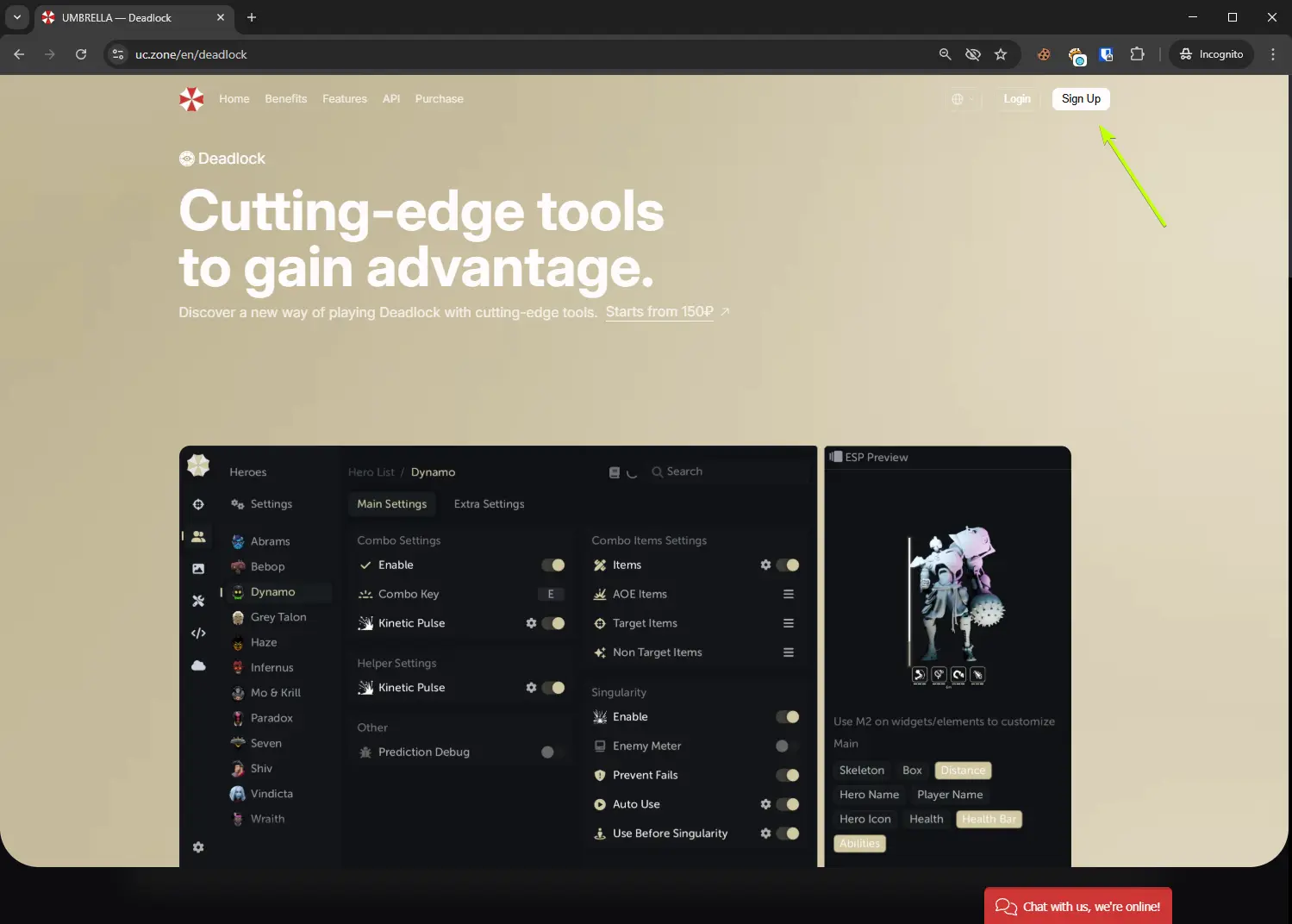
The form asks for three things:
Username — the login you will use in the launcher.
Email — an email address you can access.
Password — your account password.
Before completing registration, check the promo-code field. It should contain TESTDOTA. If it is empty, enter the code yourself. A few seconds spent checking now can save you time figuring out missing access later.
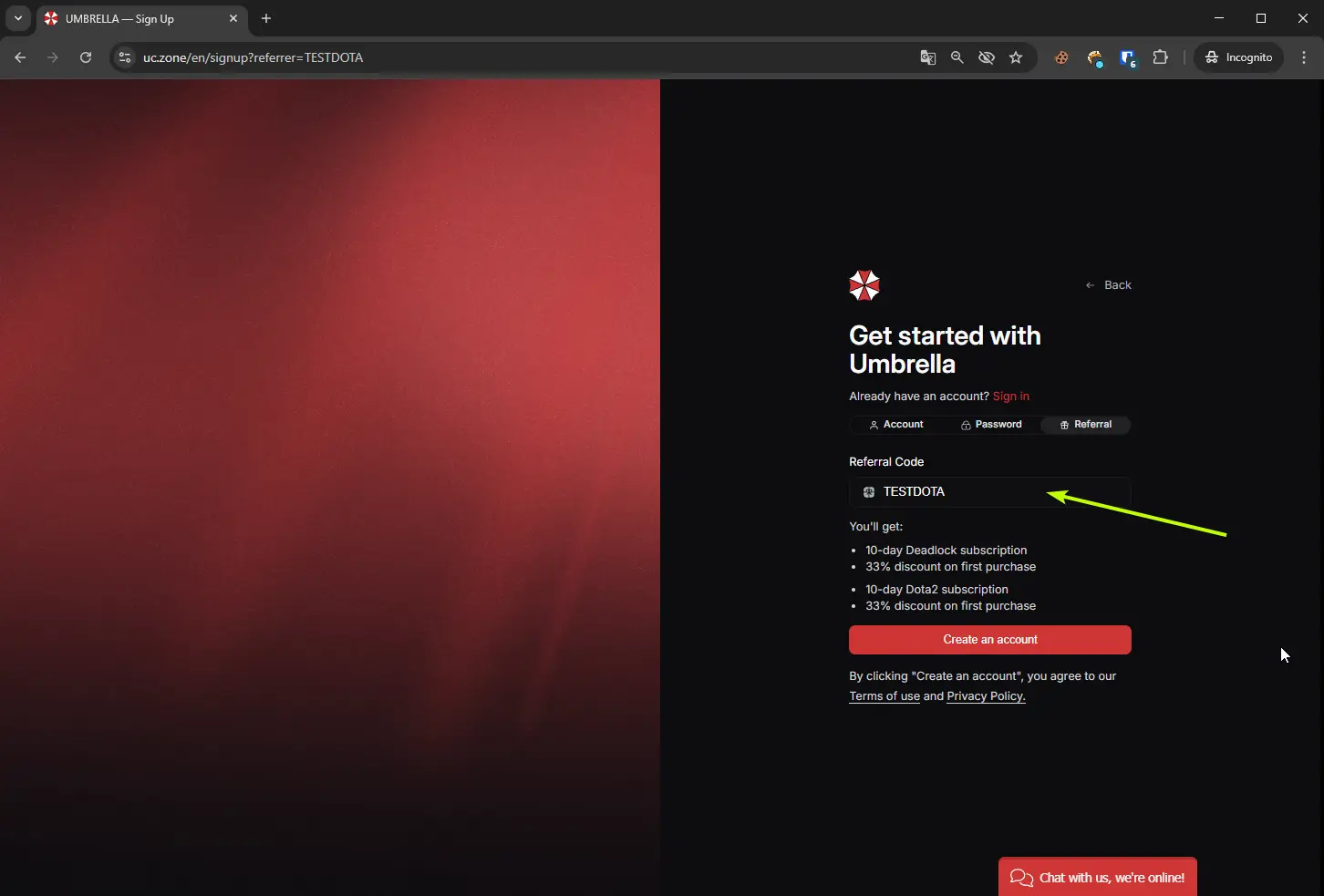
The code gives you 10 free days for Dota 2, 10 free days for Deadlock, and a 33% discount on your first subscription purchase. Check the discount during checkout, before paying.
Check that both subscriptions appeared#
After registration, open your account dashboard and check both subscriptions: Dota 2 — 10 days, Deadlock — 10 days. Look at each expiry date to see the access credited to your account.
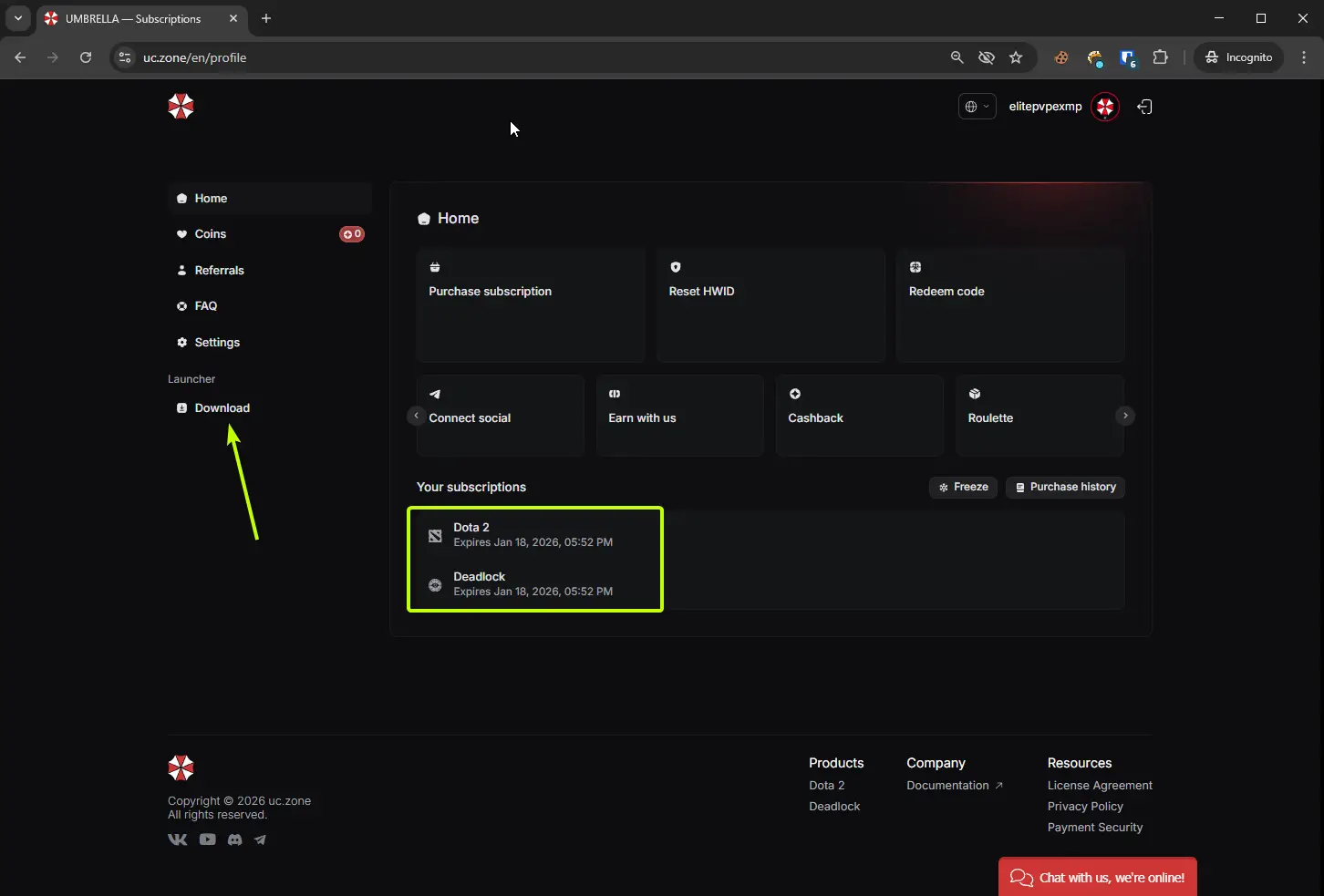
Do not skip this step. Make sure trial access is available for both games before moving on to the launcher.
Download the launcher#
Go to Umbrella downloads. Here you can download the launcher and check which additional Visual C++ components are required.
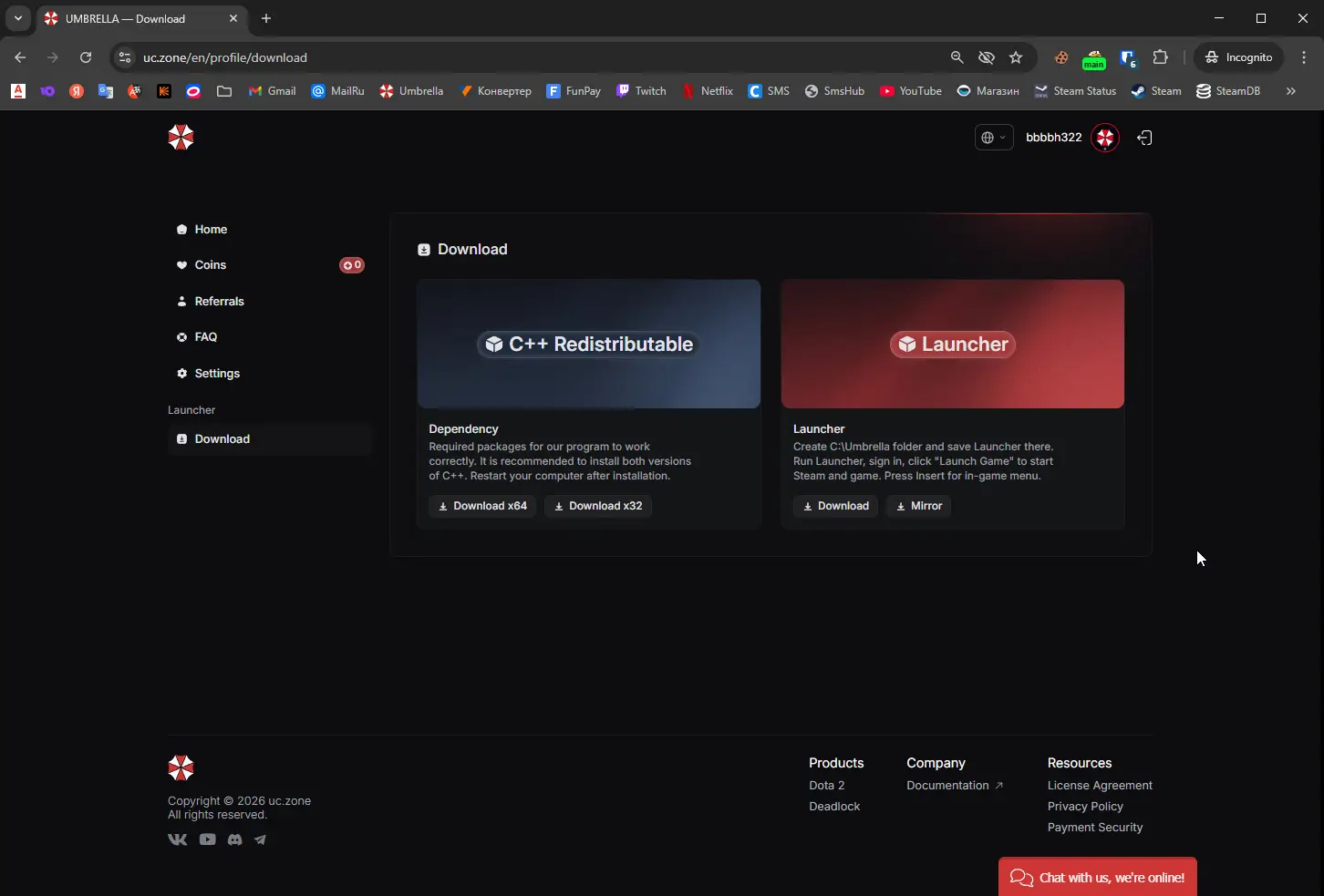
Install any components listed as mandatory, then download and open the launcher. Get the current files from your account dashboard: a random build from somebody else's message is a questionable way to start.
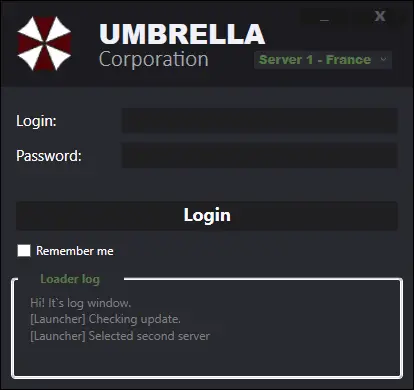
Sign in with the username and password you chose during registration. The login field uses your Username from the registration form.
Launch Dota 2 or Deadlock#
Once you are signed in:
Find Dota 2 or Deadlock in the list, depending on which you want to try first.
Select the product.
Click Launch Game, or the equivalent launch button in your interface version.
Wait for Steam and the game to open.
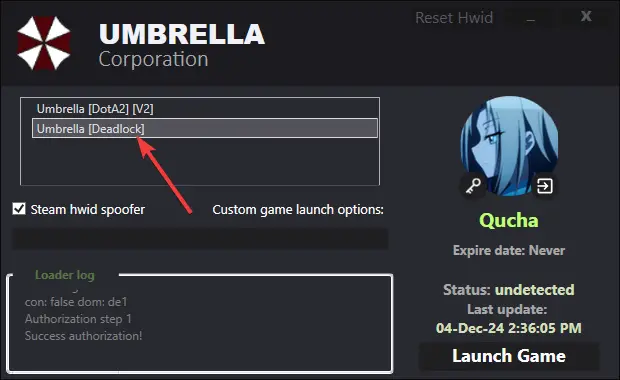
The launcher starts Steam and your selected game. When launching Deadlock, Steam may restart as part of the process.
Later, you can select the other game and explore its features too. Both trial subscriptions are already available on your account.
What happens after the trial?#
Use the trial to explore both menus and decide which features matter to you. I would not turn on every setting at once: you will only end up trying to work out which one is responsible for what is happening on screen.
If you want to continue, you can browse subscriptions at TrustedCheats:
Before buying, check the duration and activation terms in the listing for your game.
The TESTDOTA discount applies to your first purchase directly through Umbrella. Do not assume it also applies to a TrustedCheats order: these are separate checkouts.
Ready to get started?#
The process is straightforward: create a new account, enter TESTDOTA during registration, get 10 days of Dota 2 and 10 days of Deadlock, check both subscriptions, and launch through the launcher. The key steps are entering the code and making sure the free access has been credited for each game.
Then take your time exploring the product. That is what the trial is for: forming your own opinion before buying.
Umbrella
Current details, status and plans are available on the product page.